Track Templates
Level: Beginner | Audience: Composer, technician, student, studio user.
Use this page when you want to choose the right ICST project or track template instead of building every routing block manually.
The ICST Ambisonics Plugins install two sets of ready-made REAPER templates: project templates for starting a complete session, and track templates for inserting pre-configured tracks into an existing session.
Project templates vs. track templates
Project templates (.RPP files) give you a complete, empty session with the full signal chain already in place: encoder, B-format master, and decoder. Use these when starting from scratch.
Track templates let you add a pre-configured encoder block — with the correct channel count and routing — into an existing project. Use these when you are expanding a session or building a custom layout.
Available project templates
Two project templates are installed to Users/Shared/AmbiPluginsTemp/ProjectTemplates:
| Template | Contents | When to use |
|---|---|---|
ICST_AmbiPlugins_MonoEncoder.RPP | Single mono source, encoder, B-format master, decoder | First sessions, minimal setups, or testing a single moving source |
ICST_AmbiPlugins_MultiEncoder.RPP | MultiEncoder with 16 mono source child tracks, B-format master, decoder | Most production work — start here for multi-source sessions |
Available track templates
Two groups of track templates are installed to Users/Shared/AmbiPluginsTemplatesTemp/TrackTemplates:
ICST AmbiPlugins — core encoder blocks:
ICST_AmbiEncoder_Multi_8src— MultiEncoder with 8 pre-routed mono sources. The most common starting point for adding a new source group to an existing session.- MonoEncoder template — single source track with encoder pre-loaded and 64-channel output.
ICST AmbiPlugins 3rdParty — integrations with third-party spatial audio plugins such as IEM and SPARTA tools. Use these when combining ICST encoders with external processing in the same signal path.
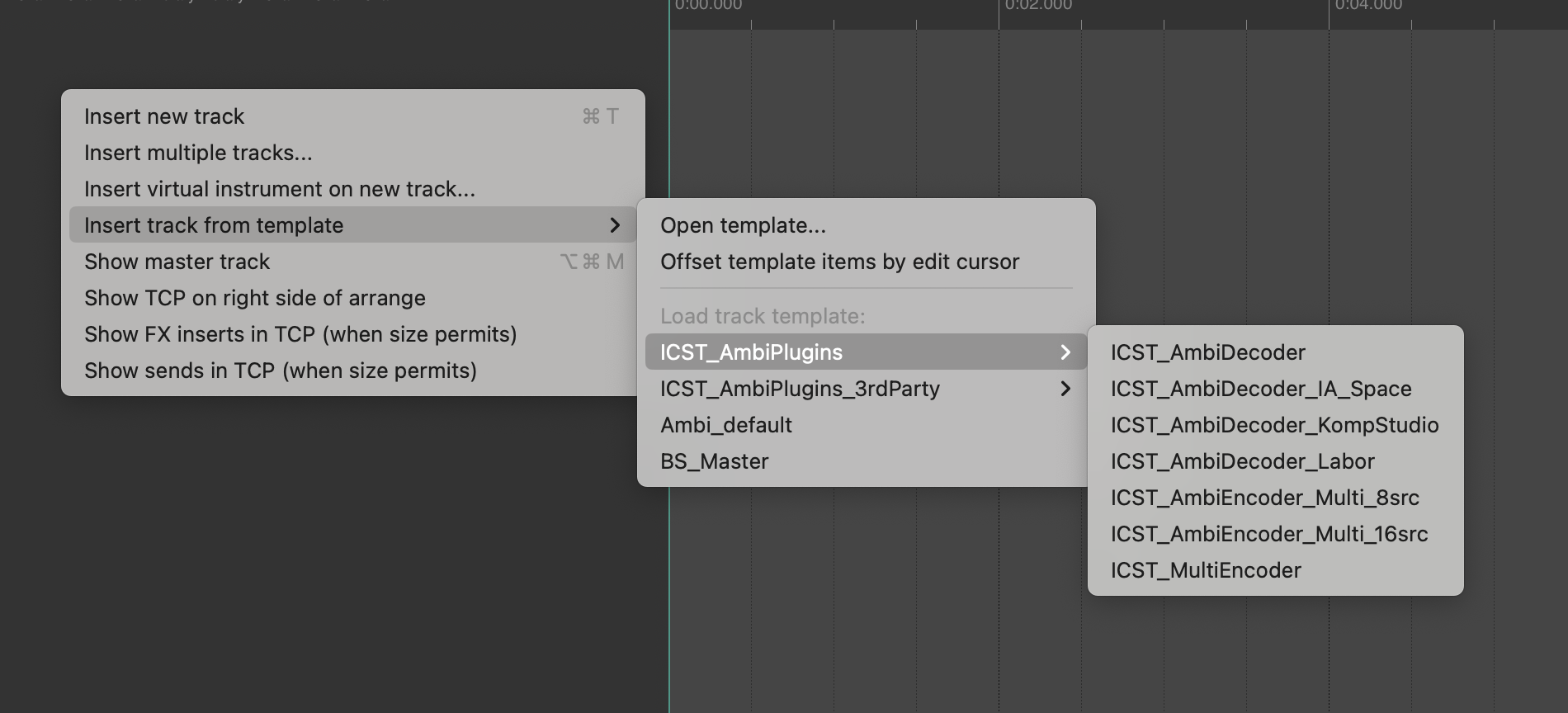
How to insert a track template
- Right-click in the empty track area in REAPER.
- Select Insert track from template.
- Navigate to the desired template group (ICST AmbiPlugins or ICST AmbiPlugins 3rdParty) and choose the template.
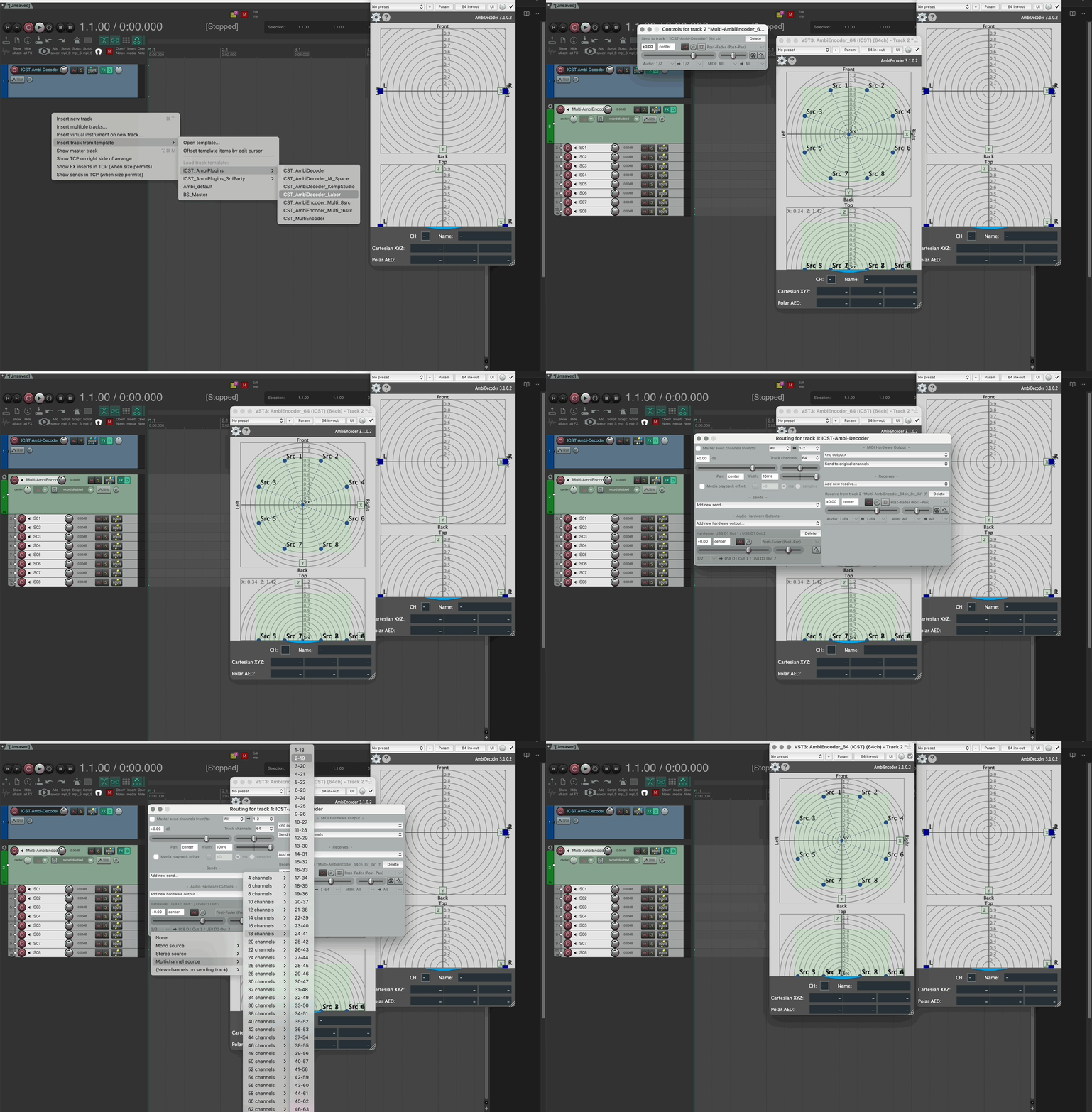
After inserting, verify the routing between the new tracks and the existing B-format master to ensure a valid signal flow before adding audio.