ICST Encoders
Level: Intermediate | Audience: Composer, technician, student, interactive-media user.
Use this page when you want to place, move, group, or automate sources inside the Ambisonics field.
If you are unsure what B-Format, ambiX, ACN/SN3D, or 64 channels mean before choosing encoder settings, read Ambisonics Formats Explained first.
When to use which encoder
Use MonoEncoder when:
- you want to position one source at a time
- you are learning the workflow
- you want the clearest per-source routing
Use MultiEncoder when:
- you want to control many sources in one interface
- you need source grouping
- you want to record or edit larger movement structures
- you want OSC-based interaction with multiple sources
What the encoders do
The ICST Encoders position and move sound sources inside the Ambisonics B-format field.
- MonoEncoder handles one mono source.
- MultiEncoder handles up to 64 sources on one track and organizes them into up to 8 groups.
A distinctive feature is the built-in distance simulation, which combines lowpass filtering and a Doppler-style effect to shape depth perception.
OSC input and output make the encoders usable in controller-based and algorithmic workflows.
Overview
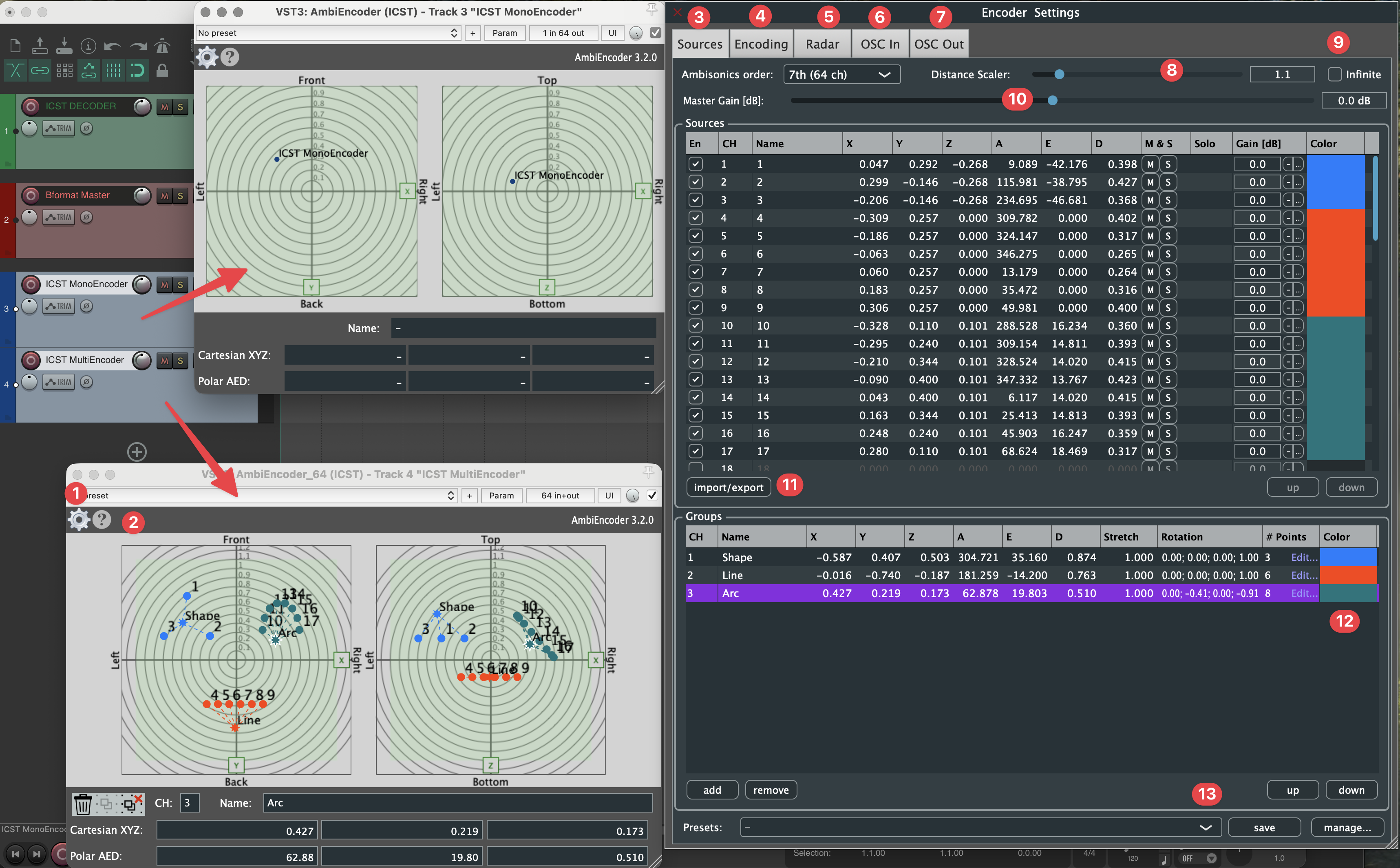
Top left the MonoEncoder (one source), bottom left the MultiEncoder with three groups, on the right the Encoder Settings window.
- Settings (gear) – opens the Encoder Settings window.
- Help (?)
- Sources – source list with position (X/Y/Z, A/E/D), mute/solo, gain and colour.
- Encoding – encoding settings.
- Radar – radar display settings.
- OSC In – receiving OSC messages.
- OSC Out – sending the encoder state via OSC.
- Distance Scaler – distance simulation via lowpass filtering and Doppler-style behaviour.
- Infinite – place sources at the far-field boundary.
- Master Gain [dB] – overall level of the encoder.
- import/export – save or load source configurations.
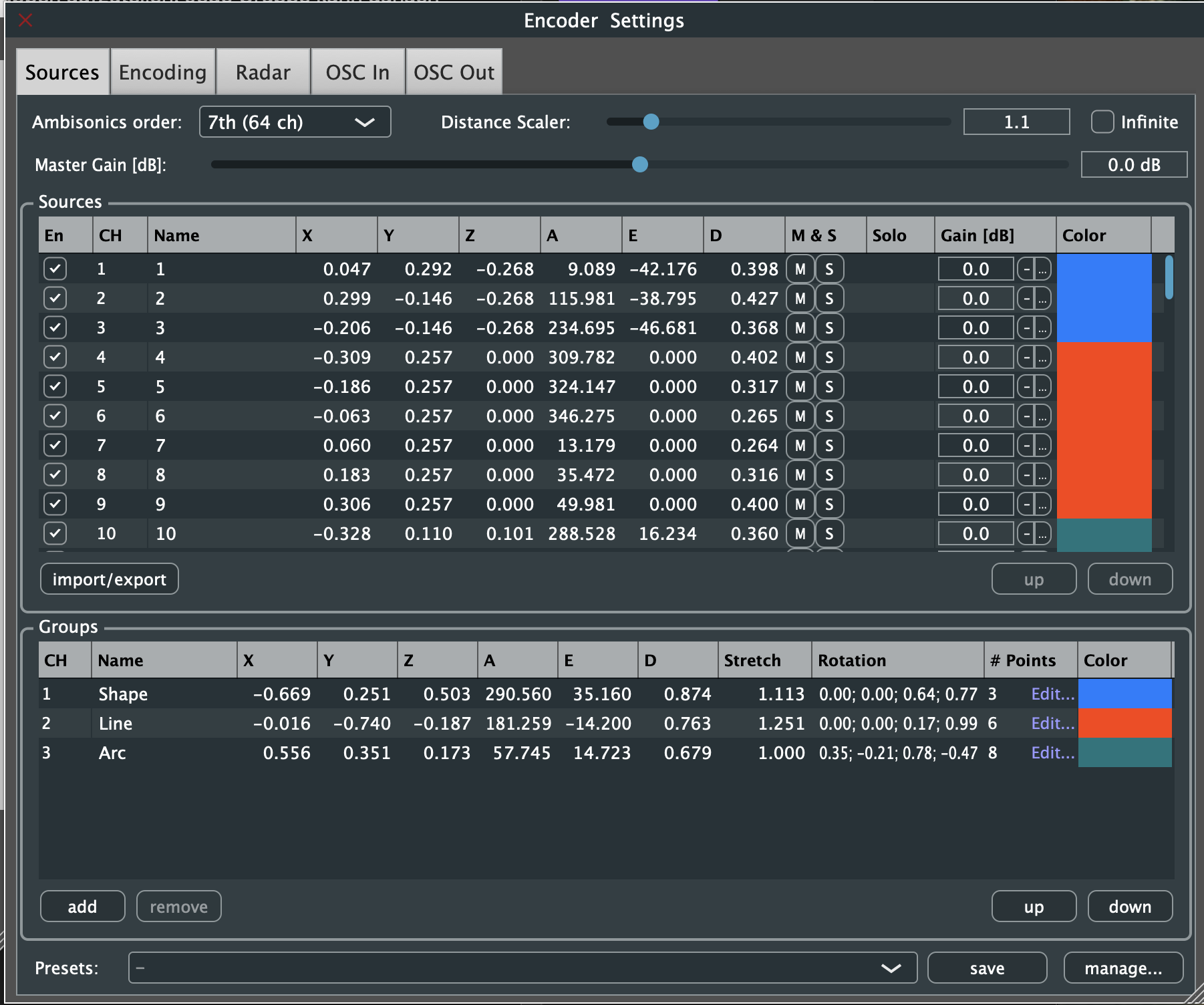
- Groups – group editor with position, stretch, rotation, number of points and colour; groups can be moved relative to their centre.
- Presets – save and manage complete encoder states for repeatable setups (save, manage…).
Video: ICST Ambisonics Plugins – 02 – AmbiEncoder
User interface
Source window
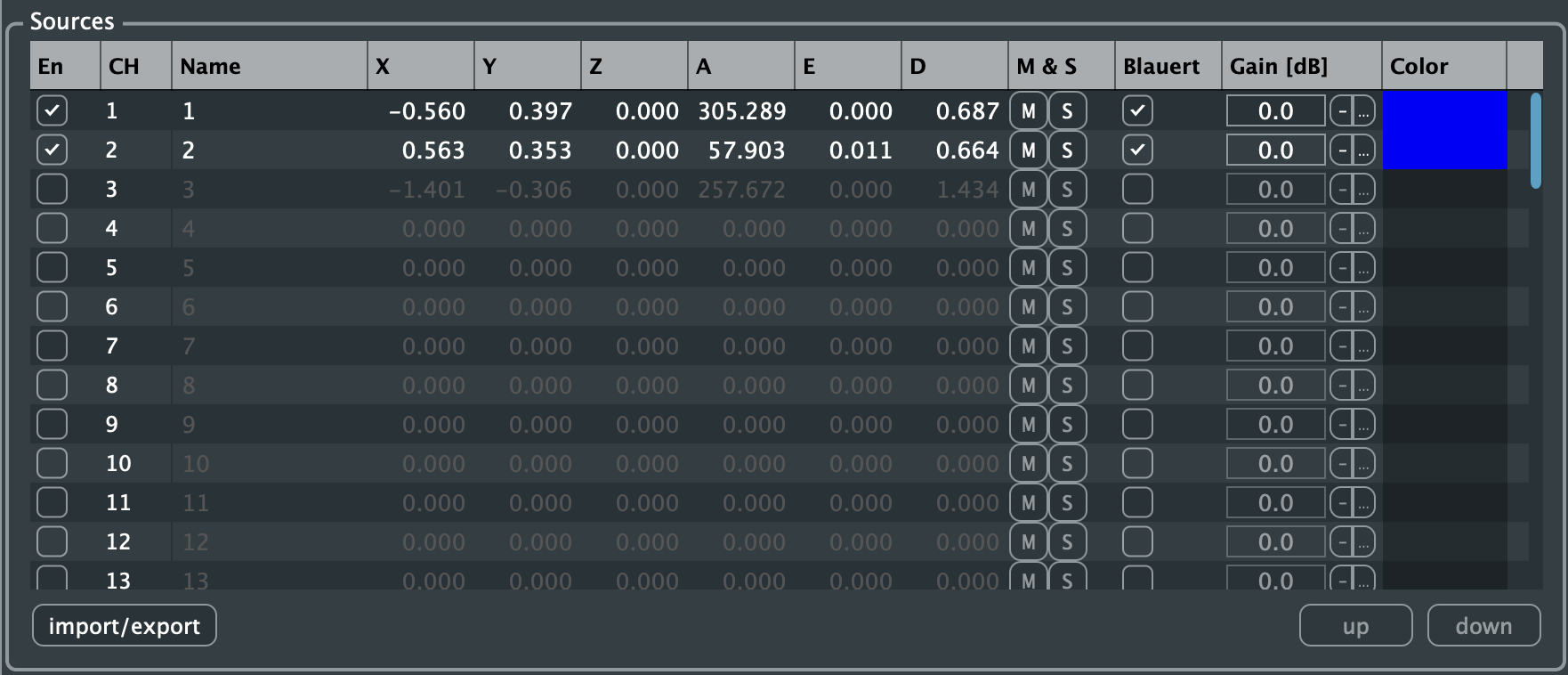
This area shows and controls individual sources by azimuth, elevation, and distance.
New in 4.0: the Blauert column switches the Blauert filter on or off per source (settings see Encoding settings).
Encoding settings
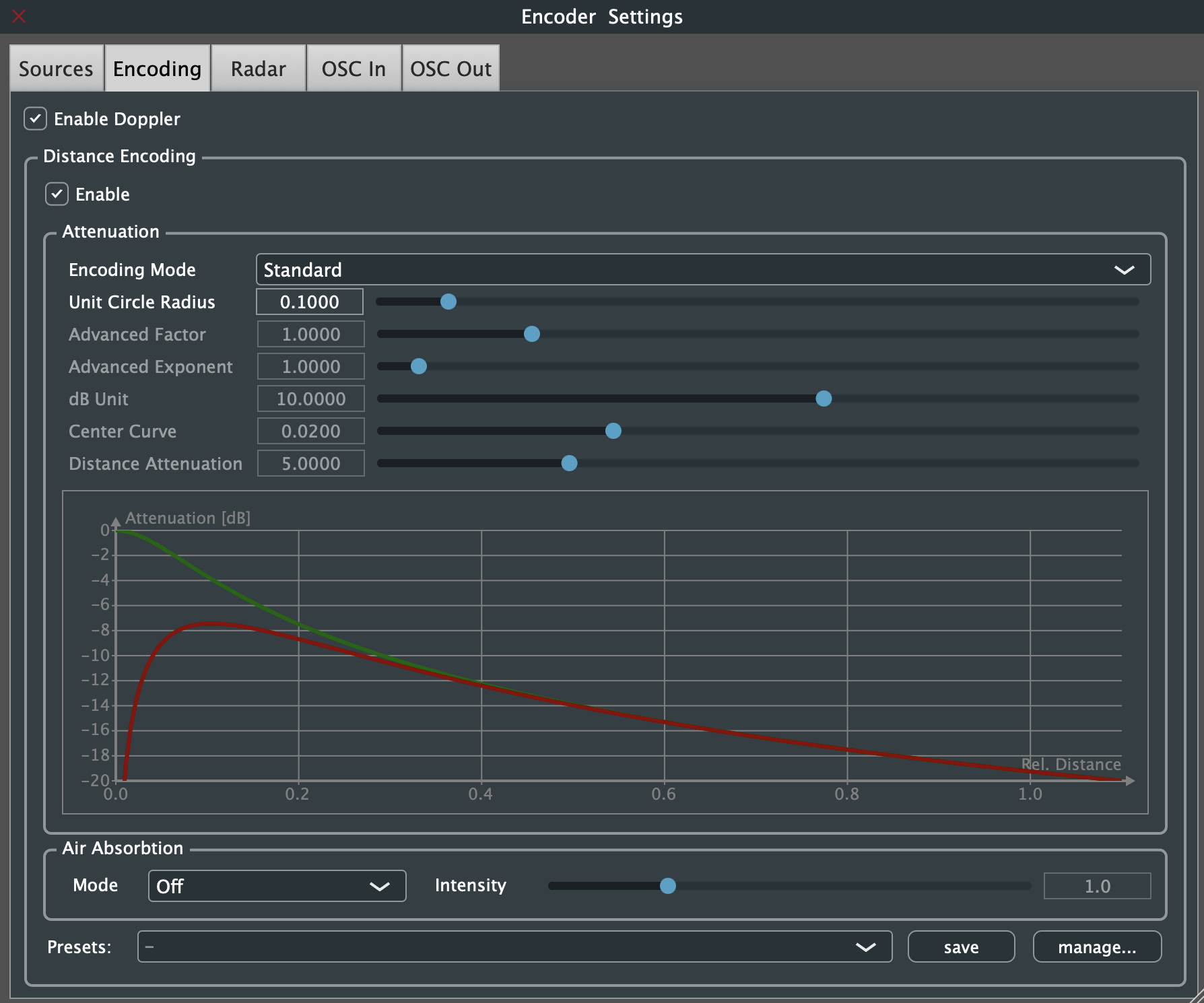
This section sets core encoding parameters such as order and channel format.
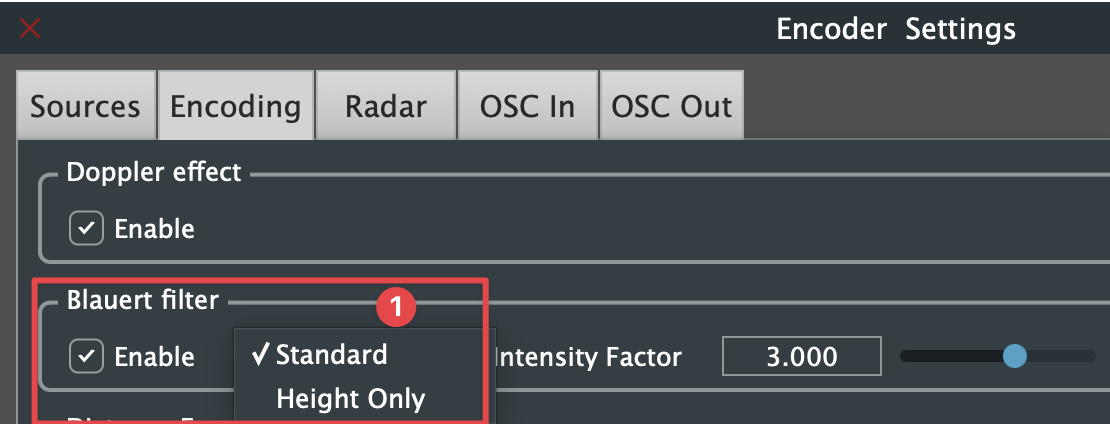
New in 4.0: in the Encoding tab, the Doppler effect and the Blauert filter can be enabled separately. The Blauert filter has two modes, Standard and Height Only (acts on the Z axis only), and an Intensity Factor (in %) that sets the strength of the filter.

Radar
The radar gives a top-down view of the field and makes source positions and groups directly editable.
Grouping and movement
MultiEncoder is especially useful when spatial movement is not just individual, but structural:
- several sources can be grouped
- groups can be moved relative to a group center
- larger spatial choreographies can be recorded and refined
Use grouping when the scene should behave as a coherent object rather than as unrelated single sources.
New in 4.0:
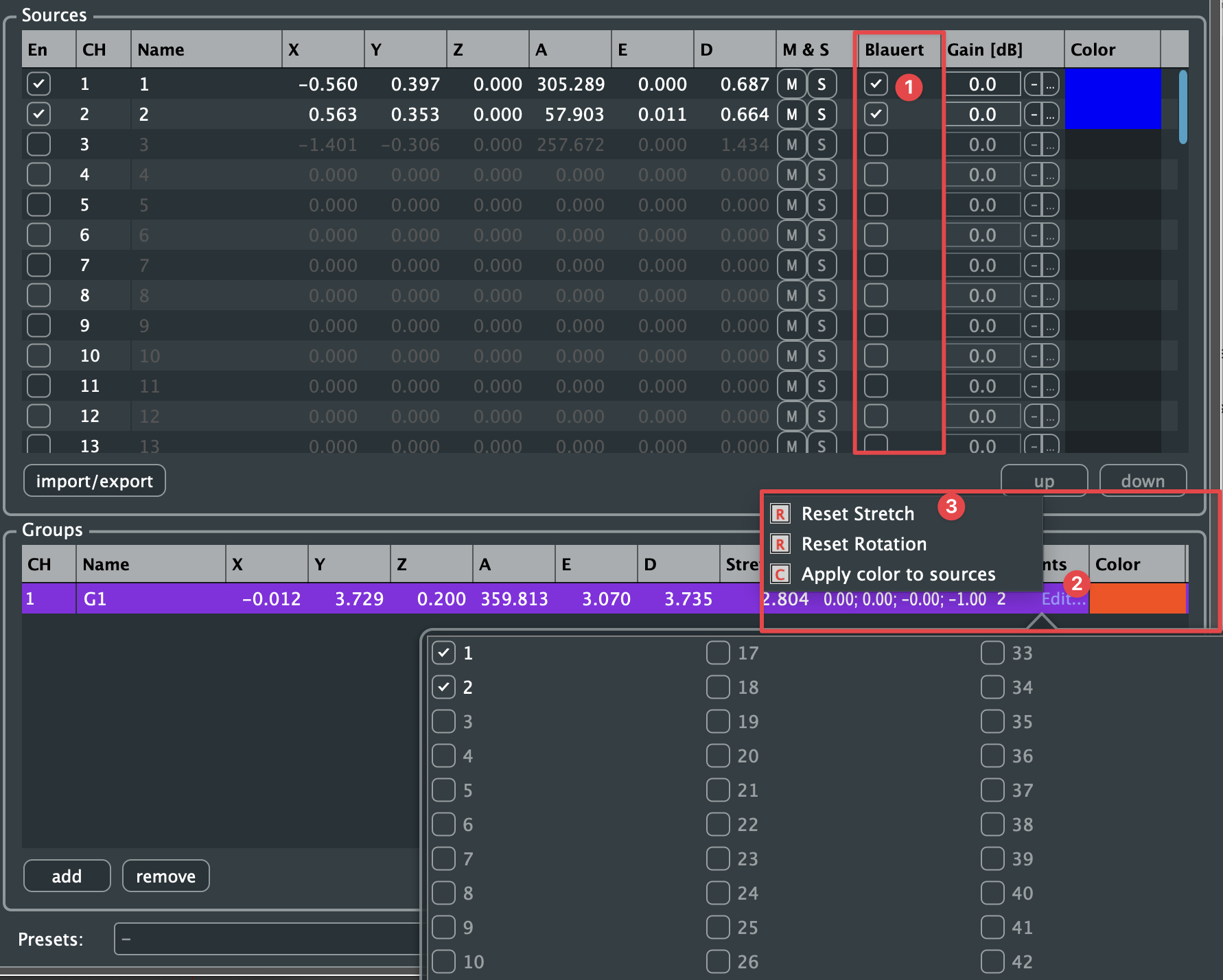
- Blauert – Blauert filter per source.
- Edit… in the # Points column – opens a selection of all 64 sources; ticked sources belong to the group.
- Group context menu – Reset Stretch, Reset Rotation and Apply color to sources (applies the group colour to its sources).
OSC integration
- OSC input and JavaScript receive external control messages
- OSC output sends encoder state to controllers or external applications
New in 4.0: OSC Out to external targets. In the OSC Out tab, Send Positions for External Usage sends the positions to any number of targets, optionally continuously (Continuous) at the set interval (ms). At the bottom the tab shows the estimated network traffic.
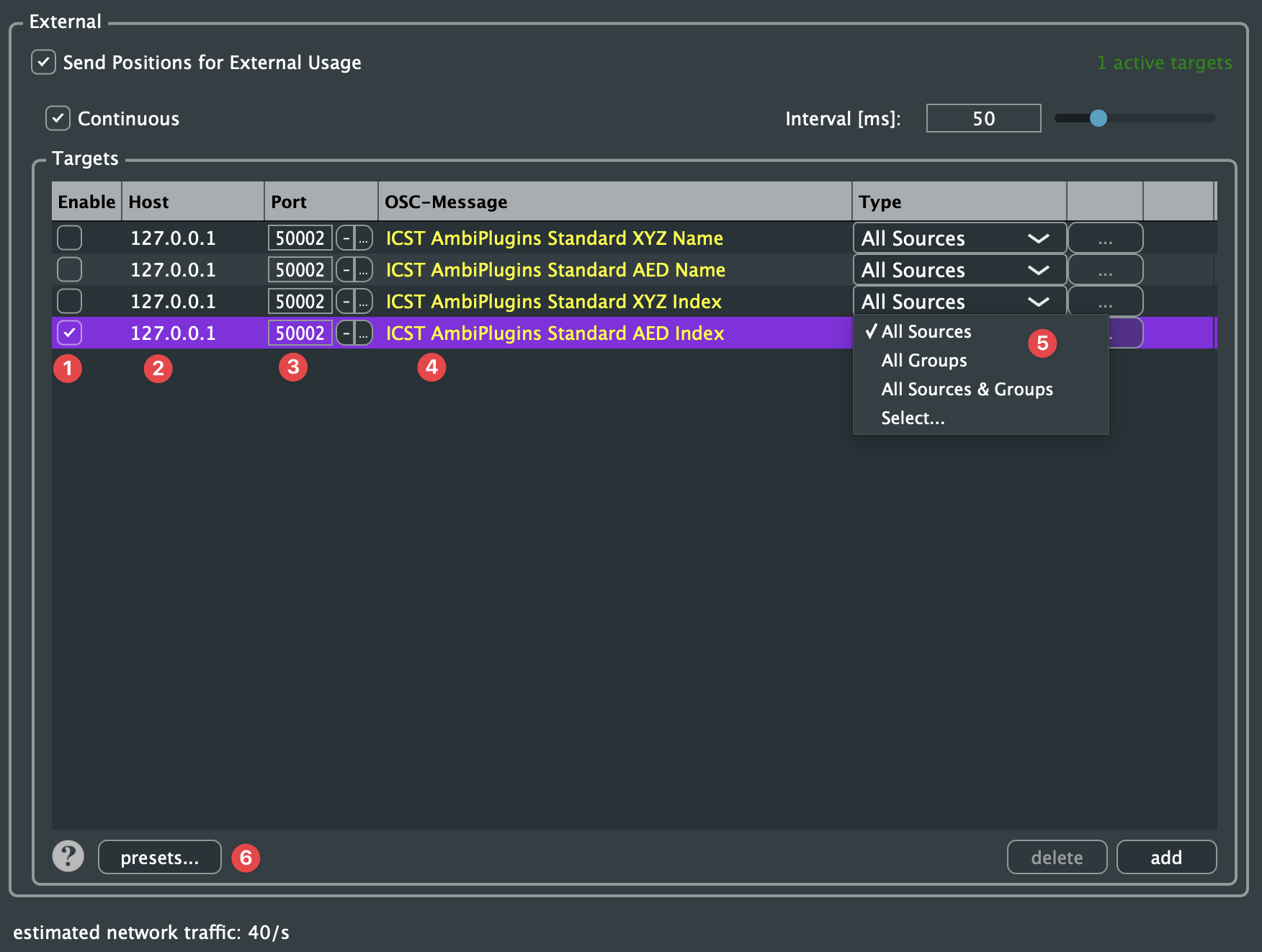
- Enable – switch the target on or off.
- Host – IP address of the receiver.
- Port – target port.
- OSC-Message – message format, e.g. ICST AmbiPlugins Standard XYZ/AED with name or index.
- Type – what is sent: All Sources, All Groups, All Sources & Groups or Select….
- presets… – save and load target configurations.
With Select…, the … button opens a selection of individual sources and groups:
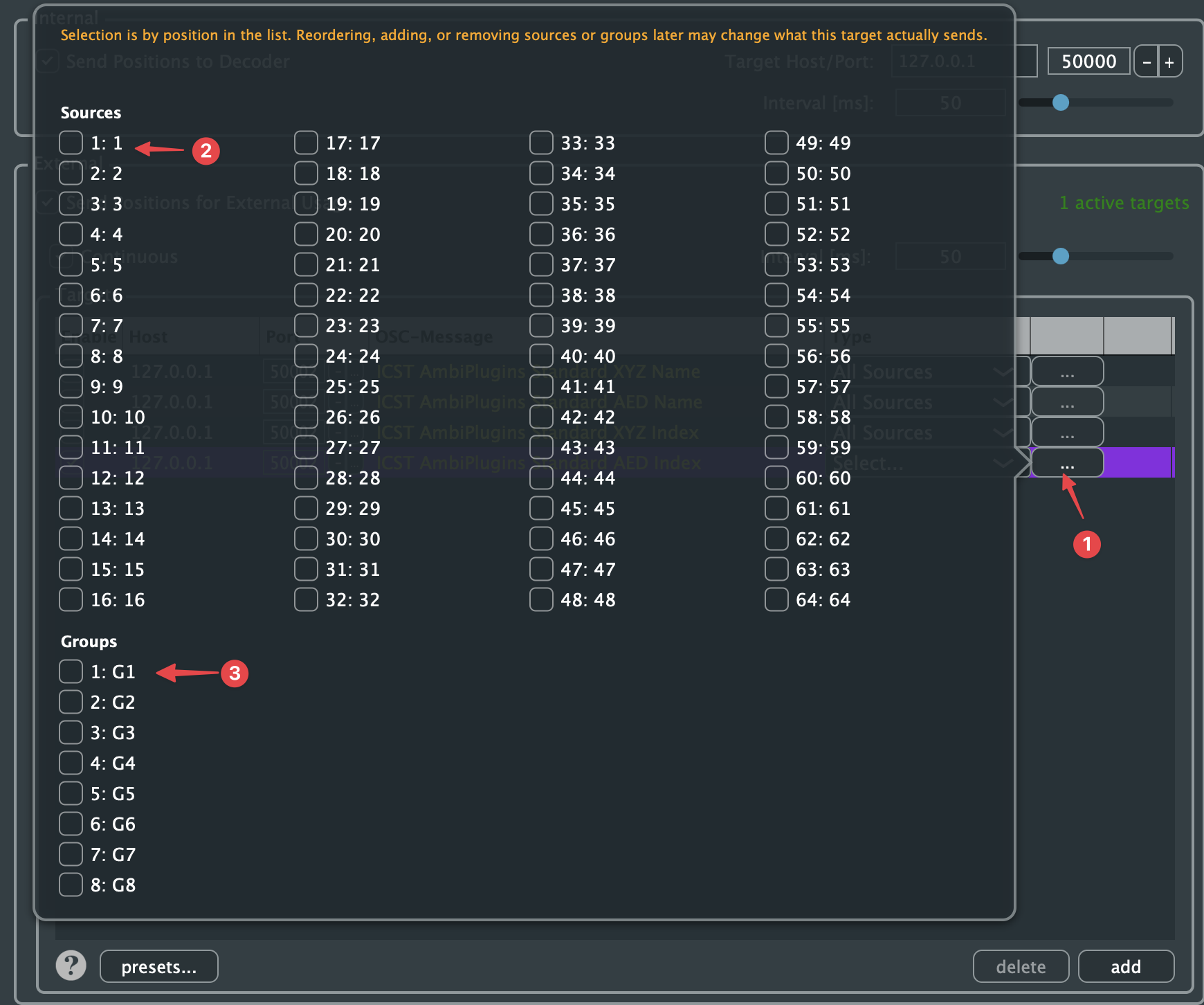
The selection is by position in the list. If sources or groups are reordered, added or removed later, the target may send different data.
Video: ICST Ambisonics Plugins – 03 – OSC Part 1
For setup and syntax:
Common mistakes
- using MultiEncoder when a simple MonoEncoder track would be clearer
- changing distance scaling late in the project and breaking movement consistency
- forgetting that encoder routing must still end in a stable Bformat Master
- treating OSC as required when normal REAPER automation would be enough
- grouping sources without clear naming, which makes later editing harder